Import & Export
In the settings panel, you will find functionality to import and export podcasts. This feature lets you import your saved podcasts from other apps, e.g. Pocket Casts. Similarly, you can also export your podcasts from PodNotes to such apps.
Importing
To import podcasts, follow these steps:
- Go to the PodNotes settings in Obsidian.
- Find the "Import" section.
- Click the "Import OPML" button.
- A file selection dialog will open. Choose your OPML file.
- The selected podcasts will be imported into PodNotes.
Exporting
You can export your saved feeds to opml format.
First designate a file path to save to (or use the default), and click Export.
Settings & templates
Under the Settings & templates heading you can move your PodNotes configuration between vaults or back it up. This covers your preferences, note/timestamp/transcript templates, file paths, saved feeds, and playlists.
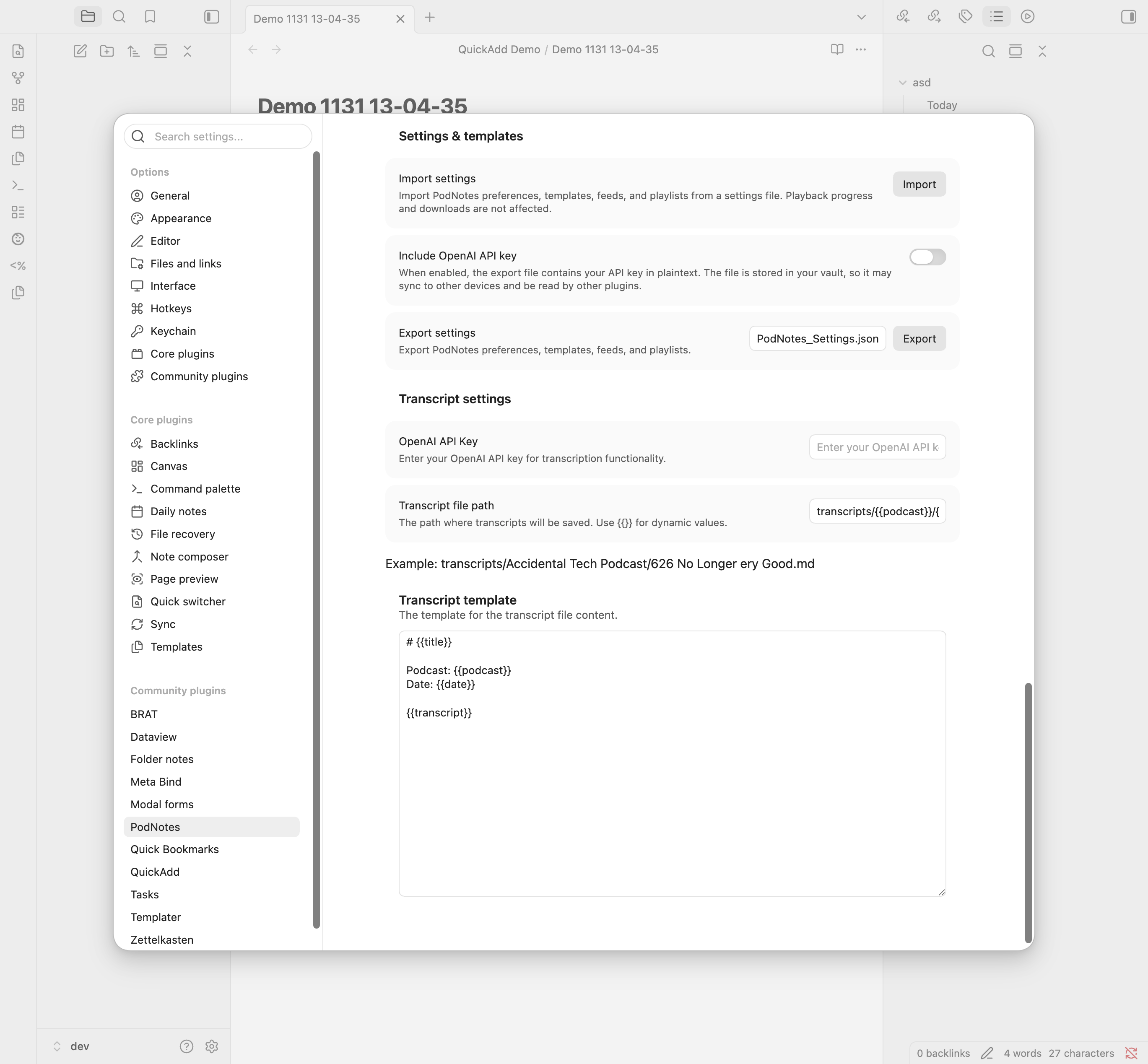
Playback progress, downloaded-episode bookkeeping, the currently-playing episode, and the episode-to-note mapping are not included, because they are specific to a single vault.
Exporting settings
- (Optional) Enable Include OpenAI API key if you also want your key in the file. The key is written in plaintext, so only do this for files you keep private — the file lives in your vault and may sync to other devices or be read by other plugins.
- Set a file name (or keep the default
PodNotes_Settings.json). - Click Export. The settings file is written to your vault.
Importing settings
- Click Import next to Import settings and choose a settings file. Both a
PodNotes export file and a raw
data.jsonare accepted. - Confirm the import. Your current preferences, templates, feeds, and playlists are replaced with the imported values; playback progress and downloads are kept.
A file exported by a newer version of PodNotes is rejected until you update the plugin. If an episode is already open when you import, a changed default playback rate applies to the next episode you open.